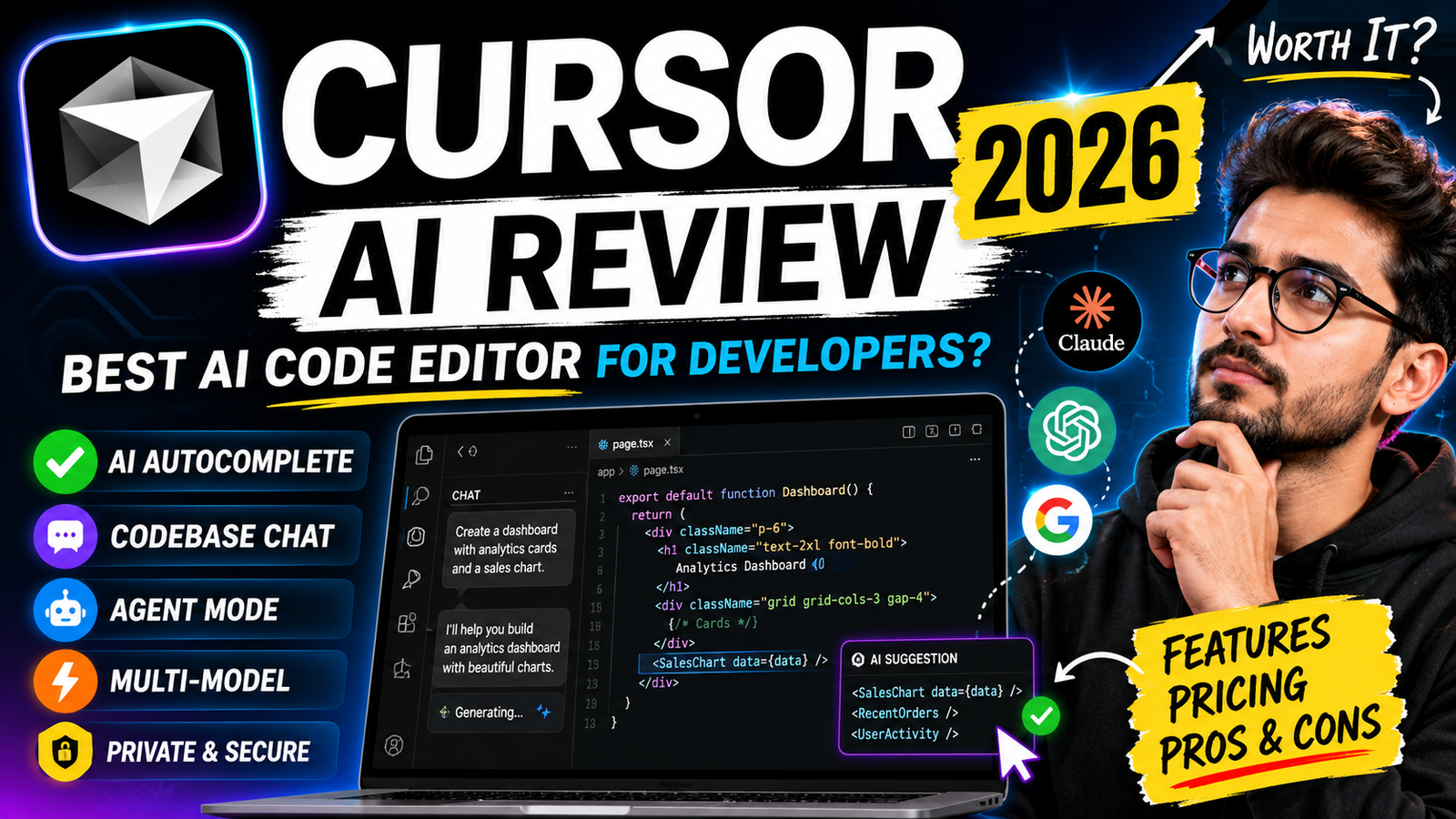
Cursor AI Review
If you’ve spent any time on developer Twitter, Reddit, or Hacker News in the last year, you’ve probably seen someone gushing about Cursor. It’s been called “VS Code on steroids,” “the editor that writes half your code for you,” and, from a few frustrated posters, “the tool that quietly drained my credit card.” Both camps have a point, and that’s exactly why this review exists.
I’ve spent real hours inside Cursor — writing production code, refactoring old projects, testing its agent mode on messy legacy files, and yes, watching my usage credits disappear faster than I expected. This isn’t a copy-paste spec sheet. It’s a practical, honest look at what Cursor actually does well, where it falls short, what it costs in 2026, and whether it’s worth your money if you’re a developer in the United States (or anywhere else, honestly — but pricing and comparisons here are framed for a US audience).
By the end, you’ll know exactly who Cursor is built for, who should skip it, and how to avoid the billing surprises that show up in almost every online complaint about the tool.
What Is Cursor AI, Exactly?
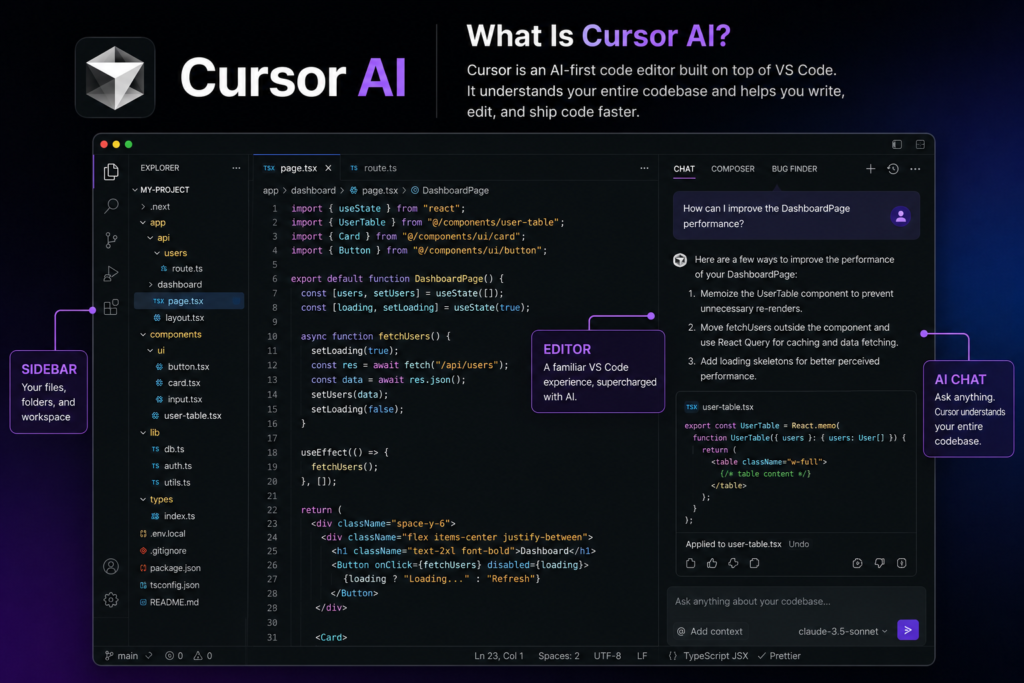
Cursor is an AI-native code editor built by a company called Anysphere. Instead of being a plugin bolted onto an existing editor, Cursor is a full fork of Visual Studio Code with artificial intelligence woven directly into the core experience. That distinction matters more than it sounds. Because it’s built on top of VS Code, every extension, theme, keyboard shortcut, and workflow habit you already have carries over almost seamlessly. You’re not learning a brand-new interface — you’re learning a smarter version of one you probably already know.
What makes it different from just “VS Code with a chatbot” is how deeply the AI is integrated:
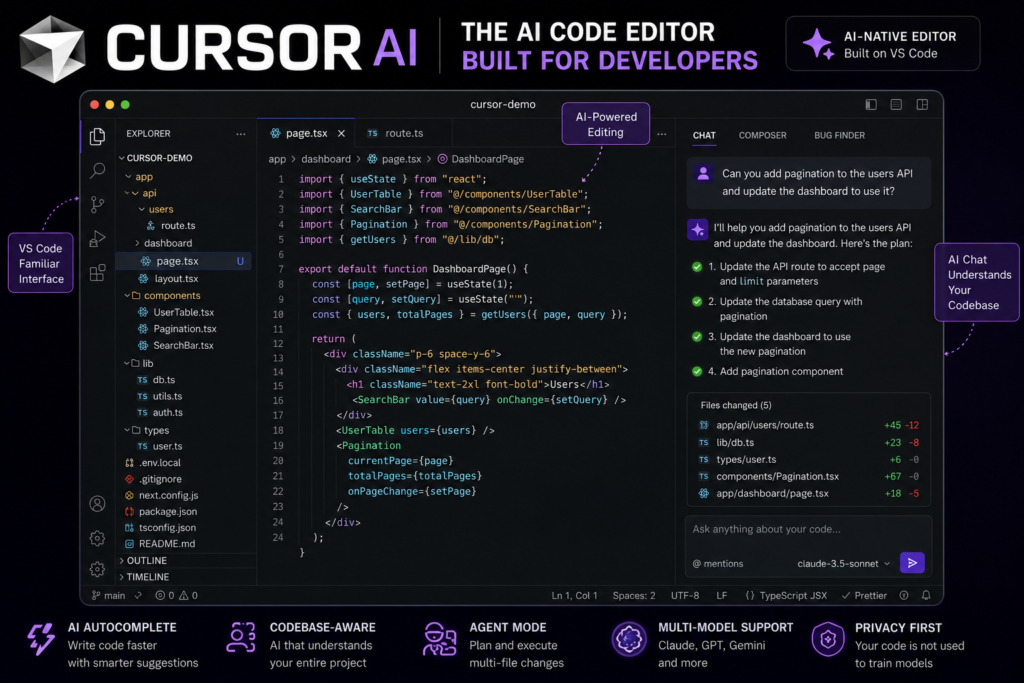
- Tab completion that predicts entire blocks of code, not just the next word
- Chat that understands your whole codebase, not just the file you have open
- Composer/Agent mode, which can plan and execute multi-file changes on its own
- Multi-model access, letting you switch between models like Claude, GPT, and Gemini depending on the task
Cursor has grown fast. It’s reportedly used by hundreds of thousands of developers worldwide, and it regularly gets mentioned alongside GitHub Copilot, Windsurf, and Replit Agent as one of the defining tools of the “AI-assisted coding” era.
First Impressions: Setting Up Cursor
Installing Cursor feels familiar if you’ve ever installed VS Code — because, under the hood, it basically is VS Code. You download it, and it offers to import your existing settings, extensions, and keybindings from your current editor in a single click. That one feature alone removes almost all the friction that usually comes with switching tools. There’s no relearning curve for basic navigation, no hunting for familiar menus.
Once you’re in, the AI features are front and center rather than hidden in a sidebar. You get a chat panel, an inline “ask AI” shortcut, and the now-famous Tab key that suggests multi-line edits as you type. Within the first ten minutes, most developers notice the same thing: the autocomplete doesn’t feel like autocomplete anymore. It feels like pair programming with someone who already read your entire file.
The Features That Actually Matter
1. Tab Completion (Predictive Editing)
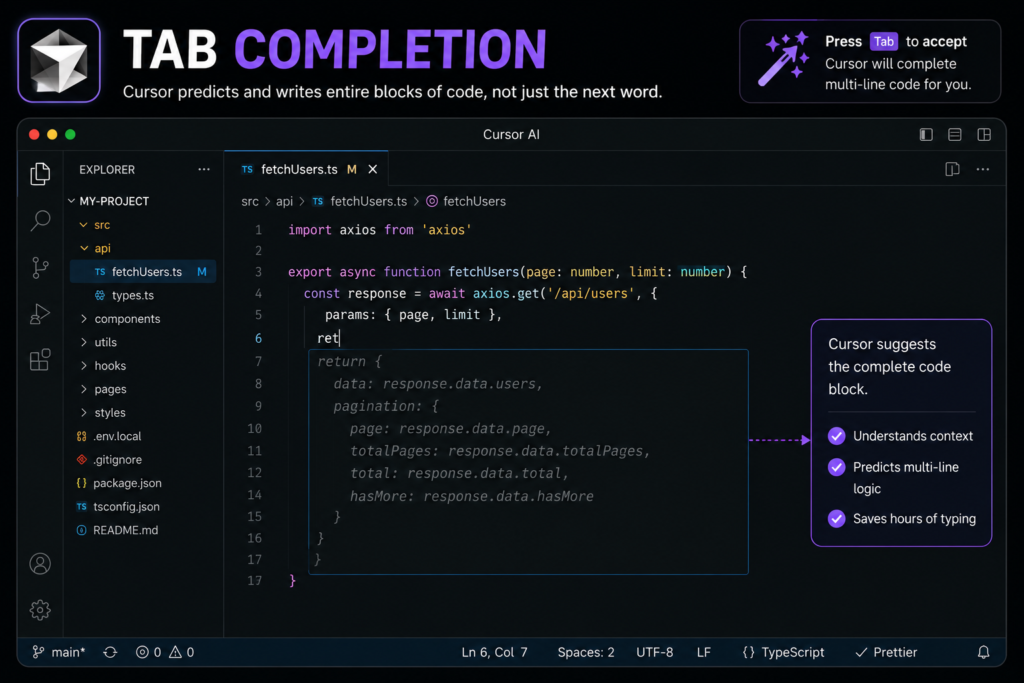
This is where Cursor first won people over. Traditional autocomplete finishes a line. Cursor’s Tab feature often finishes a function, or predicts your next edit somewhere else in the file entirely — like renaming a variable in one spot and having Cursor immediately suggest the same rename three lines down. It sounds small until you’re deep in a refactor and realize you haven’t manually typed a variable name in twenty minutes.
2. Codebase-Aware Chat
Ask Cursor’s chat a question like “where do we handle authentication errors?” and it doesn’t just guess — it actually searches your project files for relevant context before answering. For anyone who has worked in a large repository, this is a genuine time-saver. You stop tab-switching between five files just to remember how a function is used elsewhere.
3. Composer / Agent Mode
This is Cursor’s most ambitious feature, and also its most divisive. Agent mode lets you describe a task in plain English — “add pagination to the users API and update the frontend to match” — and Cursor will plan the change, edit multiple files, and even run terminal commands if needed. When it works, it feels like magic. When it doesn’t, it can confidently rewrite the wrong file or introduce a subtle bug that looks correct at a glance. The lesson every experienced user learns quickly: review every agent-generated diff before accepting it. Treat it like a very fast, very literal junior developer — talented, but not yet trustworthy enough to merge without a second pair of eyes.
4. Multi-Model Flexibility
Cursor doesn’t lock you into one AI model. You can switch between Claude, GPT-based models, Gemini, and Cursor’s own first-party model (Composer) depending on the task. Simple completions might run fine on a lighter, cheaper model, while a gnarly architectural decision might call for a more powerful one. This flexibility is one of Cursor’s real advantages over single-model competitors like GitHub Copilot.
5. Privacy Mode
For professional and enterprise users, Cursor offers a privacy mode that guarantees your code isn’t used to train the underlying AI models. If you work with proprietary or client codebases, this is worth confirming is switched on before you start pasting sensitive logic into the chat.
Where Cursor Falls Short
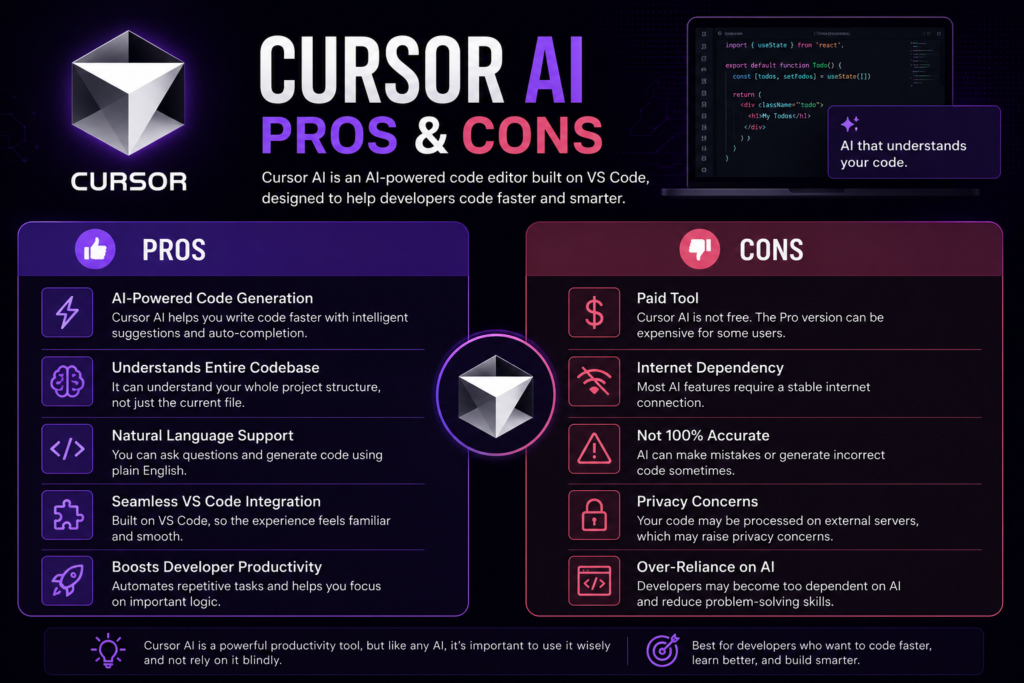
The billing model is genuinely confusing. In mid-2025, Cursor switched from a simple “number of requests” system to usage-based, credit-metered billing tied to the actual compute cost of whichever AI model you use. On paper, this is fairer — heavier tasks cost more, lighter ones cost less. In practice, a lot of users were caught off guard when their monthly bill jumped well past the advertised plan price, simply because they used a more expensive model like Claude Opus in “Max mode” a few too many times. If you’re not watching your usage dashboard, costs can escalate quietly.
Agent mode still makes mistakes. It’s improved a lot, but it can still misunderstand a task, touch files it shouldn’t, or produce code that runs but doesn’t actually solve the problem correctly. This isn’t unique to Cursor — every AI coding agent has this issue right now — but it means you can never fully hand off a task and walk away.
It’s noticeably more expensive than some alternatives. GitHub Copilot’s individual plan is roughly half the price of Cursor Pro, and tools like Codeium/Windsurf’s lower tiers can undercut it further. Cursor’s defenders argue the price difference reflects real capability gaps (full-codebase context, multi-model access, deeper agent features), and for many power users that’s a fair trade. But if you only need solid autocomplete and occasional chat help, you may be paying for features you rarely touch.
Performance can dip on very large codebases. Indexing a massive monorepo takes time, and some users report slower responses or less accurate context-awareness once a project crosses a certain size.
Cursor AI Pricing in 2026 (Plain-English Breakdown)
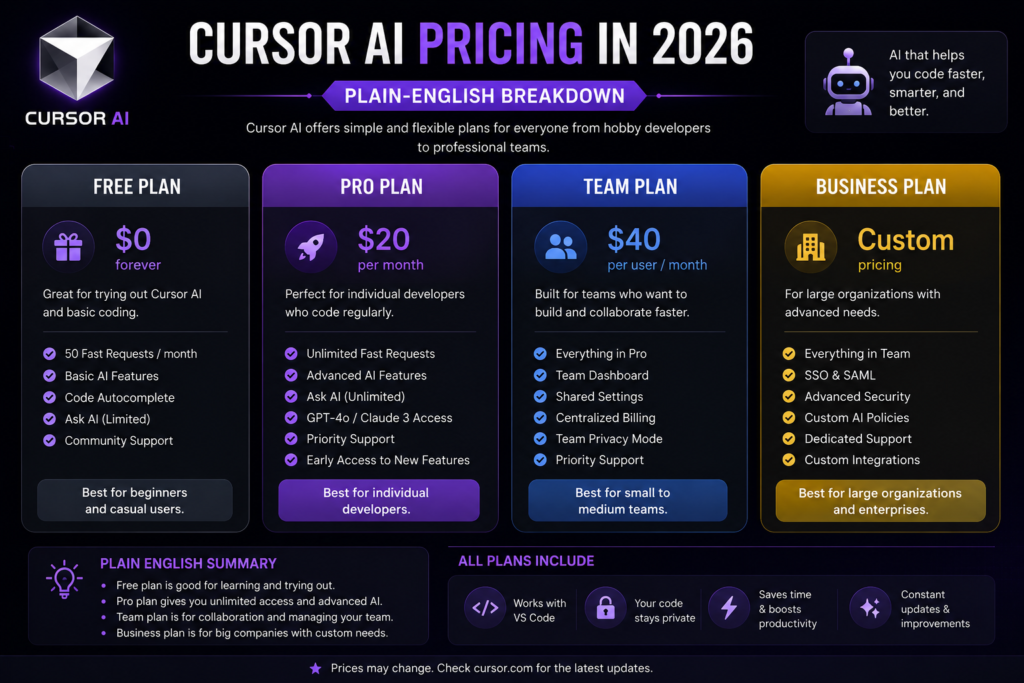
Cursor’s pricing has multiple tiers, and the structure has changed enough over the past year that older articles floating around the internet are often outdated. Here’s the current picture:
- Hobby (Free): No credit card required. Includes a limited number of code completions per month, a small allotment of “slow” premium AI requests, and a short trial window of Pro features for new accounts. Good for testing the waters, not for daily heavy use.
- Pro (~$20/month, or roughly $16/month billed annually): The most popular individual tier. Includes a monthly credit pool (roughly equal to the plan price) that gets consumed based on which AI model you choose. Auto mode — where Cursor picks the model for you — is unlimited on paid plans, which is the easiest way to avoid overage charges.
- Pro+ (~$60/month): Roughly triples your usage allowance over Pro. Aimed at developers who use agent mode daily and burn through the standard credit pool quickly.
- Ultra (~$200/month): The top individual tier, offering significantly higher usage limits and priority access to new features. Built for power users running agent tasks constantly throughout the day.
- Teams (~$40/user/month): Adds centralized billing, admin controls, and shared team settings on top of Pro-level AI access. A separate, more generous usage pool was introduced for Cursor’s own first-party models versus third-party models like Claude or GPT, which helps teams stretch their budget further.
- Enterprise (custom pricing): Pooled usage across the organization, SSO, audit logs, invoice billing, and dedicated support.
A few practical tips if you go paid:
- Default to Auto mode. It’s unlimited on paid plans and is genuinely good enough for most day-to-day coding.
- Save “Max mode” and premium models for genuinely hard problems. That’s where credits disappear fastest.
- Check your usage dashboard weekly, not monthly. Cursor lets you set spending alerts — use them.
- Only buy directly from cursor.com. Cursor has explicitly warned that it does not authorize third-party resellers, and subscriptions bought elsewhere can be unreliable or against their terms.
Cursor vs. GitHub Copilot vs. Windsurf: Quick Comparison
| Cursor | GitHub Copilot | Windsurf | |
|---|---|---|---|
| Base editor | Standalone VS Code fork | Plugin for existing editors | Standalone editor |
| Individual starting price | $20/month | $10/month | ~$20/month |
| Multi-model support | Yes (Claude, GPT, Gemini, own model) | Limited | Yes |
| Full-codebase context | Strong | Moderate | Strong |
| Autonomous multi-file agent | Yes (Composer) | Limited | Yes (Cascade) |
| Best for | Developers who want deep AI integration in their daily editor | Developers who want light AI help in a familiar setup | Similar audience to Cursor, tight pricing competition |
The honest takeaway: if you already love your current editor and mainly want smarter autocomplete, Copilot is cheaper and less disruptive. If you want an editor built around AI from the ground up — one that can plan and execute real changes across your project — Cursor (or Windsurf, its closest rival) is the stronger fit.
Who Should Actually Use Cursor?
Good fit:
- Freelancers and indie developers building projects solo who want an AI “co-pilot” that understands the whole codebase
- Startup engineers moving fast and needing to scaffold features quickly
- Developers comfortable reviewing AI-generated diffs carefully before merging
- Teams that can absorb the higher per-seat cost in exchange for productivity gains
Not a great fit:
- Beginners who are still learning fundamentals — leaning on an agent to write code before you understand the basics can slow your actual skill growth
- Budget-conscious developers who only need occasional autocomplete help
- Teams working with extremely large monorepos where indexing and context performance still need improvement
- Anyone who isn’t willing to monitor usage and could be blindsided by variable billing
Final Verdict
Cursor earns the hype, but not unconditionally. The core editing experience — Tab completion, contextual chat, and the ability to switch AI models on the fly — is genuinely excellent and noticeably ahead of a plain VS Code + extension setup. Agent mode is impressive when it works, and it’s improving fast, but it still needs a careful human reviewing every change before it ships.
The real friction isn’t the AI quality — it’s the pricing model. Usage-based billing is fair in theory, but it puts the burden on you to monitor spend, and plenty of users have been surprised by bills higher than they expected. If you go in with clear eyes about that, set spend alerts, default to Auto mode, and treat agent output as a first draft rather than a finished product, Cursor is one of the strongest AI coding tools available in 2026. If you’re price-sensitive or just want light autocomplete, it’s worth trying the free Hobby tier first before committing.
Frequently Asked Questions
Is Cursor AI free to use? Yes, Cursor offers a permanent free “Hobby” plan with no credit card required. It includes a limited number of code completions and a small number of premium AI requests per month, plus a short trial of Pro features for new accounts. It’s enough to evaluate the tool, but most developers who code daily will outgrow the free limits within a couple of weeks.
How much does Cursor Pro cost? Cursor Pro is priced at around $20 per month, or roughly $16 per month if billed annually. It includes unlimited Tab completions, unlimited Auto mode usage, and a monthly credit pool for premium AI models.
Why did my Cursor bill end up higher than the plan price? This usually happens when you manually select a premium model (like Claude Opus) or use “Max mode” frequently, which consumes credits faster than the included monthly allotment. Sticking to Auto mode and monitoring your usage dashboard is the best way to avoid unexpected charges.
Is Cursor better than GitHub Copilot? It depends on what you need. Cursor offers deeper codebase context, multi-model flexibility, and a more powerful autonomous agent, but it costs about twice as much as Copilot’s individual plan. If you mainly want smart autocomplete inside your current editor, Copilot is the simpler and cheaper choice. If you want an AI-first editor that can execute multi-file changes on its own, Cursor is generally considered the stronger tool.
Can Cursor write an entire app by itself? Cursor’s agent mode can scaffold features, edit multiple files, and even run terminal commands based on a plain-English description. It’s genuinely useful for accelerating development, but it isn’t reliable enough to build and ship an application without human review. Always check the diffs before merging.
Is my code safe with Cursor? Cursor offers a privacy mode that, when enabled, guarantees your code isn’t used to train Cursor’s or its model providers’ AI systems. If you’re working with sensitive or proprietary code, confirm privacy mode is turned on, especially on team and enterprise plans.
Does Cursor work with my existing VS Code extensions? Yes. Since Cursor is built as a fork of VS Code, it can import your existing extensions, themes, and keyboard shortcuts during setup, so switching over doesn’t require relearning your whole workflow.
Is Cursor good for beginners learning to code? It can be genuinely helpful for beginners as a learning aid, but relying on Composer or Agent mode to write code you don’t yet understand can slow down real skill development. New developers are generally better off using Cursor’s chat to explain concepts rather than letting the agent generate entire features unsupervised.
Where should I buy a Cursor subscription? Directly through cursor.com. Cursor has stated it does not authorize third-party resellers, and subscriptions purchased elsewhere may be unreliable, insecure, or against its terms of service.
Is Cursor worth it in 2026? For developers who code daily and want a tool built around AI rather than one with AI bolted on, most reviews — including this one — land on yes, with the caveat that you need to actively manage usage to keep costs predictable. For casual coders or students on a budget, the free tier or a cheaper alternative like GitHub Copilot may be the smarter starting point.
This review reflects hands-on testing and publicly available pricing information as of mid-2026. Cursor’s pricing and features change frequently — always check cursor.com/pricing for the current numbers before subscribing.
Read Also…….
Microsoft Copilot Review 2026: Is It Actually Worth Paying For?
DeepSeek AI Review 2026: Is the Chinese AI Model Worth Your Time and Data?

Hey, I’m Manish
I’ve tested 100+ AI tools since 2023 and reviewed them honestly on ZentroAI.
My mission: Help you discover the best AI tools without the hype.
Whether you need ChatGPT alternatives, coding assistants, or image generators .
you’ll find detailed, hands-on reviews here.